VoxMotoChat Beta
User manual
PLEASE NOTE: The version of the app provided is a Beta version and it may contain bugs (as well as simplified graphics, UI, templates, design, placeholders, etc.), which may cause the app to malfunction, such as freezing, crashing unexpectedly, communication errors, certain features not working correctly, etc. (Restarting the app (force-closing it) usually helps to get it working again). The appearance and functions of the application are subject to change..
The VoxMotoChat app is a hobby project. The app is available for free via the Google Play Store.
Licence (EULA): https://voxmotochat.com/pl/eula
Index
- 1. What is it and who is it for?
- 2. App features
- 3. Login screen
- 4. Room screen
- 5. Additional settings
- 6. Contact
1. What is it and who is it for?
VoxMotoChat is a voice chat app (VoIP - for real-time voice communication) designed specifically for motorcyclists to enable group voice communication using any motorcycle intercom system (this solves the problem of communication between different brands and models of motorcycle intercoms, but requires an internet connection).
The app can also be used successfully for voice communication via any Bluetooth headset or Bluetooth hands-free system (e.g. in a car) or even using the speaker and microphone built into your phone.
VoxMotoChat can be used for communication whilst on the road between cars or on hiking or cycling trips in the countryside.
Frequent internet outages or disconnections affect audio quality, which may lead, for example, to interruptions in audio playback or transmission. The VoxMotoChat app has no control over this, but it does not destabilise the app's operation, nor does it cause the app to close or result in a sudden, unplanned disconnection from the server due to lost data packets, however, if a disconnection from the server occurs (as a result of a prolonged loss of internet connection), the app will automatically re-establish the connection to the server as soon as possible (once a connection to the internet and the server is re-established).
1.1 TIP: To improve the quality and stability of your internet connection whilst travelling on mobile phones, we recommend using 5G networks only. On Android devices (Network & Internet settings -> Mobile network -> Preferred network types -> Set to 2G/3G/4G). Mobile networks and mobile internet are characterised by instability and high latency and the app has no control over this. This is an inherent feature of mobile networks and mobile internet access and all VoIP apps face these issues. To stabilise your mobile internet connection at the cost of a lower data transfer speed (though still perfectly adequate), disabling 5G support may help, as phones with 5G enabled often switch between modes such as 4G and 5G due to poor 5G coverage, leading to frequent interruptions in audio packet transmission, dropped calls and high battery consumption.
PLEASE NOTE VoxMotoChat can be used on a local network, but the phone cannot use the 2.4 GHz Wi-Fi network and the Bluetooth intercom/headset at the same time (the connection will be intermittent, severely delayed or impossible) because Bluetooth also operates in the 2.4 GHz band, causing 2.4 GHz Wi-Fi and Bluetooth (2.4 GHz) to interfere with each other (you can use "phone" mode with Bluetooth turned off).
SOLUTION: is to connect mini-jack/usb-c headphones to the phone and not use Bluetooth or connect the phone to the WiFi 5 GHz network and then you can use the intercom/Bluetooth headphones at the same time (this is a phones hardware issue, not an application problem).
2. App features
The app has been designed to operate reliably under variable and challenging mobile internet connection conditions whilst driving (where there are frequent packet losses, interruptions to the internet connection, periods of several minutes without an internet connection, significant delays, etc.)
- Encrypted communication, including E2EE audio encryption – communication with the server and clients is fully encrypted (technologies used include, for example, Ed25519, X25519, ChaCha20-Poly1305 with a nonce) and in addition, audio packets are encrypted using E2EE (end-to-end encryption is a communication system in which only the sender and recipient have access to decrypted messages). E2EE encryption of audio packets safeguards the confidentiality of the conversation even if the server is compromised by unauthorised persons (the server is unable to decrypt the audio).
- automatic reconnection to the server (if the situation requires it)
- long connection retention time, which helps in situations where the internet connection is temporarily lost (e.g. when driving through a forest and experiencing intermittent internet access or a loss of connection for a few minutes)
- audio ducking support - muting the voice chat and prioritising audio playback, e.g. for navigation (audio instructions) or, for example, notifications from the Yanosik app
2.1 TIP: The VoxMotoChat app has no control over this, but if the start of messages from the Yanosik app is being cut off, you should set a message playback delay in the Yanosik app (Settings -> Bluetooth -> Message delay, e.g. 2000 ms), unfortunately, message truncation is often caused by Bluetooth devices aggressive power-saving measures and the VoxMotoChat app has no control over this. If the audio intercom is not playing any audio (e.g. a conversation), the Bluetooth audio channel is "closed" by the Bluetooth device to save battery power. If a conversation is in progress (e.g. chat audio is being played), messages from other apps are not cut off, as the audio session to the Bluetooth device remains open at all times. Setting the message delay in the Yanosik app allows time for the Bluetooth device to "wake up", for the audio channel on the Bluetooth device to open, and for the entire message to be played.
- voice chat notifications - for example, if one of the voice chat participants answers a phone call, the other voice chat participants will be notified of this (user <username/nickname> has answered a call), when that user ends the phone call, the other voice chat participants will receive a message stating that the user has ended the phone call (user <username/nickname> has ended the phone call), which means they will rejoin the voice chat shortly. This voice-based method of informing voice chat users that someone has answered a phone call helps everyone remain aware that the user in question cannot hear the voice chat, as they are currently on a phone call (the phone call has absolute priority and takes over the microphone and the phone's audio).
- Technologies implemented:
- Acoustic Echo Cancellation - acoustic echo cancellation
- Noise Suppressor (Noise Reduction) - noise reduction
- adjustable gain for voice chat audio playback
- adjustable microphone audio gain
- voice-activated transmission - VAD (Voice Activity Detection). The Silero AI VAD model has been implemented for speech detection. It helps minimise battery consumption and save data usage (audio is transmitted only when speech is detected).
3. Login screen
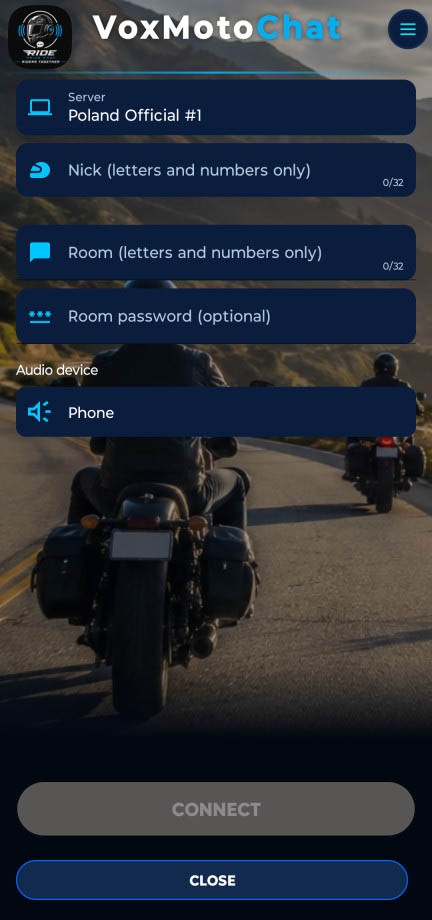
When you first launch the programme, you must fill in the "Nickname" and "Room" fields, the "Room password" field is optional.
-
Server – a list of voice chat servers (official public and unofficial community servers) to which the app can connect
-
Nickname (letters and numbers only) - any username (maximum 32 characters). If a username is already taken, the server will automatically add random numbers to the nickname.
NOTE: certain special characters, including i.e. polish characters, cannot be used.
-
Room (letters and numbers only) – any name of the room the user wishes to join (maximum 32 characters)
NOTE: certain special characters, including i.e. polish characters, cannot be used. Case sensitivity applies, which means that a room named "MYRoom" is a different room from one named "myrom". Every user must enter the exact same room name (case-sensitive) and an optional password (if set by the first person to join the room).
A room is created on the server the moment the first user joins it, and it is this first user who sets the room password, which the other users must enter. It may happen that someone has already created a room with the name you have chosen and secured it with a password, in this situation, if you do not know the room password, the application will not join that room and will disconnect from the server (displaying a message stating that the password is incorrect). You should then choose a different room name.
-
Rooms on the server are not permanent - if all users leave a room with a given name, the room on the server will be closed after a few seconds and the name will be released (becoming available to others).
-
Room password (optional) - an optional room password. Only users who enter the correct password can join a password-protected room. The password is optional, and if it is not provided by the first user creating the room (the password field is empty or contains 0 characters), the room will have no password and anyone who knows the room name will be able to join.
-
Server - clicking on this field opens a server browser, allowing you to select a server from the list or enter a server address. By default, the app selects the official public server and will connect to it unless another server is chosen, all users must be connected to the same server to be able to chat with one another.
-
Audio device - a drop-down list for selecting an audio device (microphone recording/audio playback). The Phone option selects the phone's hands-free system (the speaker and microphone built into the phone) for communication. The Bluetooth option selects a Bluetooth device for communication. If an intercom or Bluetooth headset is connected to the phone, the app will use that device for communication (this also works with in-car hands-free systems).
To avoid problems or unusual behaviour, it is best to ensure that the Bluetooth device - e.g. an intercom - is connected to your phone before connecting to the server (before pressing the "Connect" button). If the Bluetooth device is not available, the app will not connect to the server as it will have no device to communicate with, in this case, you should connect your phone to a Bluetooth device, such as an intercom or switch to using the phone itself (the phone’s built-in speaker and microphone).
-
Connect – this button connects to the server. The green "Connect" button indicates readiness to connect, when pressed, the app will connect to the server. The "Connect" button changes to a "Cancel" button whilst connecting to the server; when the "Cancel"’ button is red, clicking it will cancel the connection to the server.
-
Close – this button closes the application
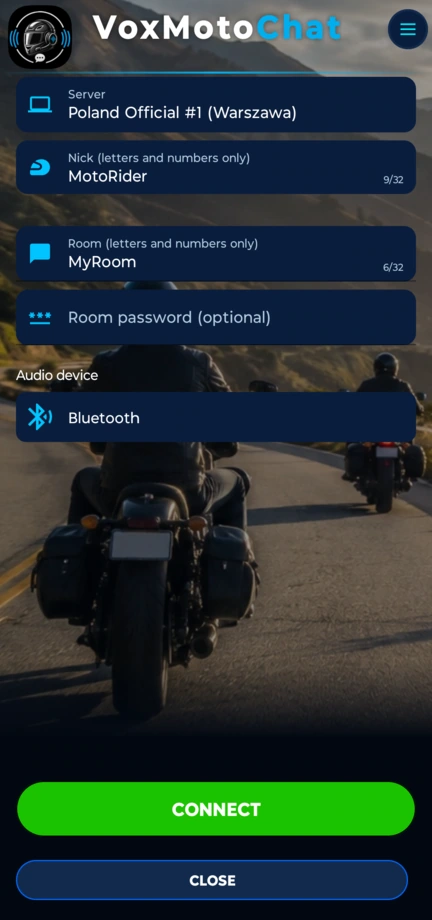
An example login screen with the fields filled in, which will connect to the server as the user MotoRider to a room (creating a room without a password) called MyRoom; our default communication device will be Bluetooth
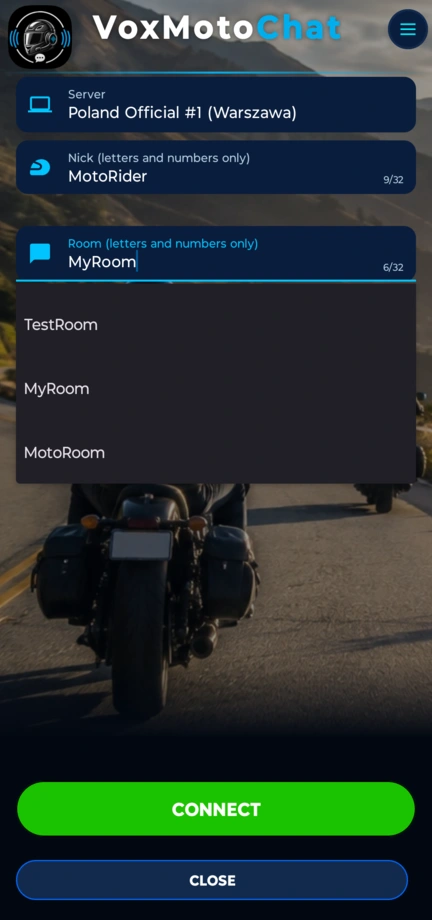
Room history – the "room" field stores the last 10 rooms the user has joined (including the room name and password), allowing you to select a room from the history without having to re-enter all the details.
Example:
3.1 Server browser
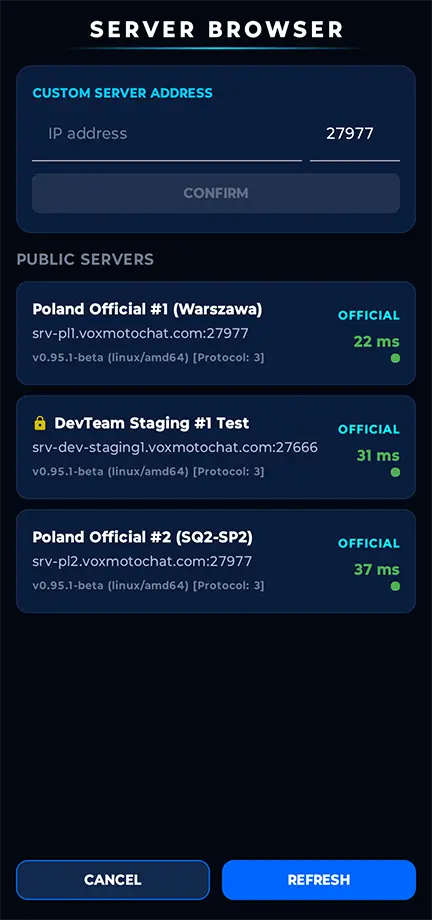
In the server browser you can select the server you want to connect to from the "Public Server" list. To select a server, click on the selected server tile. After clicking, the server will be selected and the application will return to the main/login screen. The "Refresh" button refreshes the server list, while the "Cancel" button returns to the login screen.
The server list is sorted by lowest ping/latency.
 A server with a padlock icon next to its name means that you must enter a password to connect to it.
If a server is not visible on the public server list (it was launched as "hidden"), enter the server's IP address/domain and port in the "Custom server address" field (IP address/domain and port) and click "Confirm" to have the application configure the entered data and return you to the login screen.
4. Room screen
The chat screen that appears once you have connected to the server and joined the selected room.
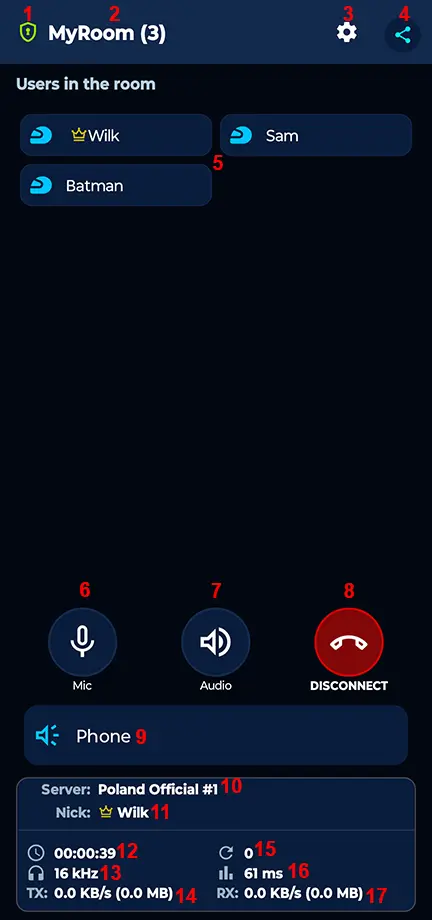
 a highlighted frame around the username tile indicates that the user is transmitting audio/speaking
 the crown next to the username indicates that this is the administrator of the room
- 1 -
 ENCRYPTION:
- green shield indicates the highest level of security (recommended), meaning the connection is fully encrypted (encrypted server-client communication and E2EE audio) + it is protected against Man-in-the-Middle (MitM) attacks, this applies to servers with public: true set, as the server is on the public server list and the client can retrieve the server's identity_key to verify the server's identity.
- An orange shield indicates that the connection is fully encrypted (encrypted server-client communication and E2EE audio encryption), but is not protected against Man-in-the-Middle (MitM) attacks because the server has public: false and its identity_key cannot be retrieved from the public server list (the server is still secure if you trust the server administrator).
- A red shield indicates that encryption has not been established and there is a problem connecting to the server (communication with the server is not possible because encryption is mandatory).
- green shield indicates the highest level of security (recommended), meaning the connection is fully encrypted (encrypted server-client communication and E2EE audio) + it is protected against Man-in-the-Middle (MitM) attacks, this applies to servers with public: true set, as the server is on the public server list and the client can retrieve the server's identity_key to verify the server's identity.
- 2 -this is the name of the room, in brackets (3) is the number of users in the room
- 3 -
 Gear icon, which, when pressed, displays a menu with additional settings
 - 4 -
 Button for generating and sharing a room invitation link. Anyone who clicks the invitation link will be automatically connected to the room (regardless of whether the room has a password or not)
 - 5 - List of usernames/nicknames of users currently in the room.
- 6 -
 microphone mute and unmute button. If the icon is white, you can talk, and if it is crossed out red it means the microphone is muted.
 - 7 -
 audio mute and unmute button. If the icon is white, you can hear the conversation/audio and if it is crossed out red means the chat audio is muted
 - 8 -
 button to disconnect from the server/room and return to the login/main screen
 - 9 - button to select the communication device: phone (built-in speaker and microphone), Bluetooth (e.g., intercom, Bluetooth headset, car Bluetooth hands-free system)
- 10 - Server - name of the server you are currently connected to
- 11 - Nickname - Your nickname
- 12 -
 Room/server connection time
 - 13 -
 Microphone sampling rate (16 kHz HD / 8 kHz SD)
 - 14 - TX - currently sent data in KB/s (total sent data in MB)
- 15 -
 counter: how many reconnections to the server were made during the current connection to the room/server
 - 16 -
 current network (packets)/server connection delay in milliseconds
 - 17 - RX - currently received data KB/s (total received data in MB)
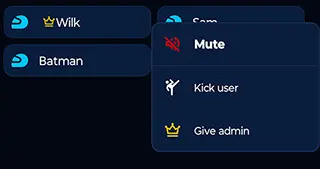
When we are connected to a room, we can freely switch communication devices, for example, switch to the phone's speakerphone or to a connected Bluetooth device. The displayed device name (the phone is selected in the image) indicates that this device is currently selected for communication. If a Bluetooth device is selected but the Bluetooth device is not available, the app will revert to the "Phone" device.
PING - the app has no effect on internet or mobile network latency, unfortunately, mobile networks are characterized by unstable connections, frequent disconnections, and variable and often quite high latencies depending on the coverage and signal strength of the mobile network (LTE/5G internet). The total audio latency depends on our ping (latency in communication with the server) and the latency of other clients.
For example (to simplify), let's say our ping is 50 ms, meaning the server receives our audio packets after 25 ms, another user in the room currently has a latency of 200 ms, which means they will receive the packets after 125 ms (25 ms + 100 ms), so the audio playback delay for the other user will be 125 ms, and this is not the app's fault it is a characteristic of network communication and applies to all real-time voice communication (VoIP) applications.
Sampling rate: 8 kHz or 16 kHz, this indicates the audio sampling rate at which the communication device is currently operating (this depends solely on the device being used). Older Bluetooth devices often support only 8 kHz, while newer ones support so-called HD 16 kHz. The app always performs audio sampling/tests and attempts to establish a connection with the best possible quality (16 kHz). If one of the users experiences noticeably poorer voice quality (muted or a narrower frequency range of the transmitted voice) this often means that the app has established an 8 kHz connection with the Bluetooth device. The audio quality for callers also depends on the microphone of the device used for communication. Bluetooth headsets, earphones and similar devices have microphones of varying quality and despite the 16 kHz audio quality, some devices will sound better while others will sound worse.
 BLUETOOTH: If your communication device is a Bluetooth device and you turn off the Bluetooth intercom/headset or if the Bluetooth device goes out of range of your phone, the app will automatically switch to the "Phone" device (i.e. will switch to hands-free mode). This may cause echo or microphone feedback if you are near other users. However, when the Bluetooth device is back in range and was previously the selected device (the user did not change any settings) the app will automatically switch back to the Bluetooth device (from "Phone" back to "Bluetooth").
5. Additional Settings
The available features depend in part on the hardware on which the app is running. A button in white indicates that the selected feature is enabled a button in red indicates that the selected feature is disabled. If a button is gray, it means that the selected feature is not available on that device (the screenshot is just an example).
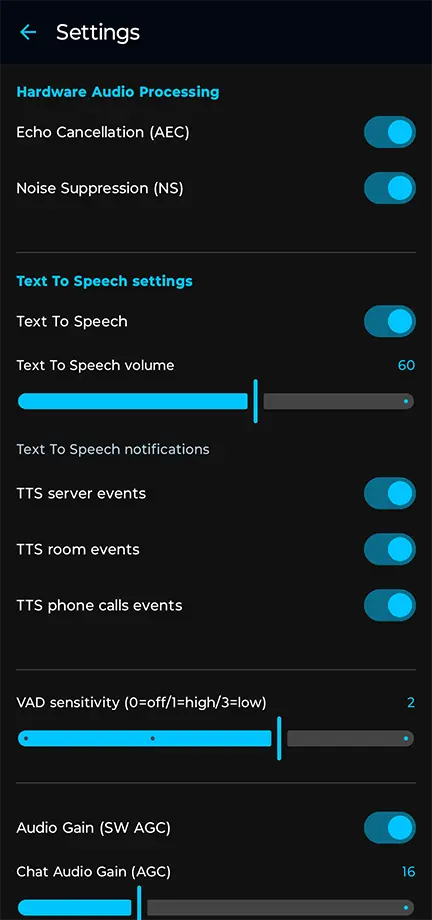
- AEC - enabled by default: Acoustic Echo Cancellation
- NS - enabled by default: Noise Suppressor (Noise Reduction)
- Text-to-Speech (TTS) - enabled by default - settings for read-aloud notifications (Text-to-Speech), the Text-to-Speech section contains notification settings
- Volume - default 60 - volume of TTS notifications
- Server Event TTS - enabled by default - server event notifications (e.g., connected, disconnected, etc.)
- Room Event TTS - enabled by default - room event notifications (e.g., user joined, etc.)
- Phone Event TTS - enabled by default - notifications when someone starts or ends a phone call
- SW AGC - enabled by default - boosts the volume of the voice chat audio being played (useful when the incoming audio is too quiet, but too much boost can lead to audio distortion or crackling, if for example, only one user is transmitting audio that is too quiet and the issue is on their end. It is recommended that this user set a higher microphone gain value).
- Chat Audio Gain (AGC) - slider - Automatic Gain Control - automatically adjusts the gain of the audio being played, the default value is +16 dB (amplifies audio received from all users in the room. If, for example, only one user's audio is too quiet and this is due to an issue on their end (e.g., a quiet microphone), it is recommended that this user set a higher microphone gain value)
- Mic AGC - enabled by default - microphone audio gain
- Microphone Gain (AGC) - slider - Automatic Gain Control - Automatic control of microphone gain (output audio); the default value is +16 dB. Through testing, a default gain level has been determined that should be optimal for most devices, but too much gain can lead to audio distortion or crackling.
- VAD Sensitivity - slider - enabled by default - VAD (Voice Activity Detection) is a voice activity detection system. The app sends (audio) packets to the server only when speech is detected, which saves battery life and data usage and prevents the transmission of unnecessary ambient sounds or noise.
The available levels are:- 0 - VAD off (continuous audio transmission - not recommended because it significantly increases battery consumption and data transfer)
- 1 - fast speech detection (high sensitivity to speech)
- 2 - normal speech detection (medium sensitivity to speech)
- 3 - very accurate speech detection (low sensitivity to speech)
In some intercoms, it may be necessary to set VAD to level 1 (fast detection) due to, for example, low microphone quality or poor microphone sensitivity. A lightweight AI model - VAD Silero (https://github.com/snakers4/silero-vad) has been implemented for speech detection.
6. Contact
Contact the developer (if you have any questions, suggestions, ideas, etc., feel free to write):